Preview website
Context
A separate preview environment allows XM Cloud stakeholders who may not have access to see how their content will look and function before it goes live. This helps prevent errors, enhances collaboration, and encourages experimentation while ensuring high-quality, polished content.
The provided code is intended as a guideline and must be tailored to suit your specific implementation requirements. Please ensure thorough end-to-end testing is conducted to validate its functionality and performance in your environment.
Execution
Follow the steps in the documentation to create a new project in your rendering host (example Vercel or Netlify) and add your preview environment variables. If you are JSS 21.6+ this will just be the following which are available from Developer settings in the XM Cloud Deploy Portal:
SITECORE_EDGE_CONTEXT_IDSITECORE_SITE_NAMEJSS_EDITING_SECRET- not needed as this is only a preview environment.
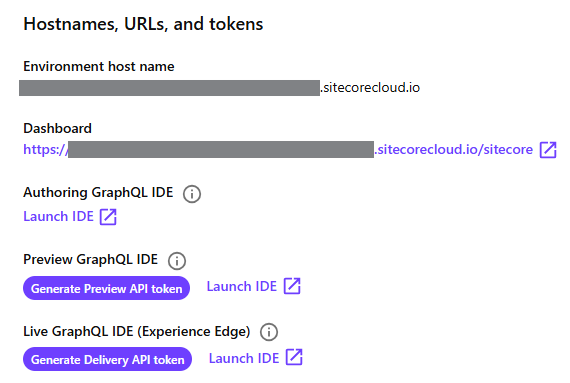
The GraphQL endpoint needs to be switched to the preview endpoint which you can find on the Details page within the Deploy Portal under Hostnames. Take the environment host name and replace the <xmc_cm_host> in the GRAPH_QL_ENDPOINT: https://<xmc_cm_host>/sitecore/api/graph/edge.
Custom image wrapper
If you have the Target Hostname field set in the site definition this will impact how media URLs are generated on the frontend when working with the preview endpoint. Target hostname is the unique hostname that you want to use for generating URLs for pages, links, and sitemaps. In this instance the target hostname will be used instead of the CM environment host name causing the images to not load.
To address this issue a custom image wrapper can be implemented to change the URL to the correct value. Start by adding addtional environmental variables to check if the preview site is in use and the URLs to check and transform:
IS_PREVIEW= trueIMAGE_SITECORE_TARGET_URL- value from the Target Hostname fieldIMAGE_SITECORE_CM=https://<xmc_cm_host>
Within you solution add a transform URL function:
// Custom URL transformation function using environment variables
export const transformUrl = (url: string): string => {
  const oldPreviewBaseUrl = process.env.IMAGE_SITECORE_TARGET_URL ?? '';
  const newPreviewBaseUrl = process.env.IMAGE_SITECORE_CM ?? '';

  // If we are on the preview env and the preview URL starts with the old base URL, replace it with the new one
  if (process.env.IS_PREVIEW === 'true' && url.startsWith(oldPreviewBaseUrl)) {
    return url.replace(oldPreviewBaseUrl, newPreviewBaseUrl);
  }

  return url;
};
Add the following image wrapper:
import React from 'react';
import { NextImage as JssImage, ImageField } from '@sitecore-content-sdk/nextjs';
import { transformUrl } from 'src/utility/transformUrl';
interface WrappedImageProps {
  field: ImageField;
}
export const WrappedImage: React.FC<WrappedImageProps> = ({ field }) => {
  // Ensure that src is defined before applying transformUrl
  const src = field.value?.src;
  // Apply transformation only if src exists
  const transformedUrl = src ? transformUrl(src) : ''; // Fallback to empty string if src is undefined
  const modifiedField = {
    ...field,
    value: {
      ...field.value,
      src: transformedUrl, // Replace original URL with transformed URL
    },
  };
  // Return the JssImage component with the updated field
  return <JssImage field={modifiedField} />;
};
Then apply to all components were images are used.
import { WrappedImage } from './WrappedImage';

.......

<WrappedImage field={props.fields.PromoIcon} />
When the new project has been created in your hosting provider and the changes applied in your solution, after being deployed your preview application will be running against the preview endpoint for XM Cloud.
Insights
Media access
A un-authenticated access feature is available, that blocks access when trying to access media directly. There is no need to add ignore rules via configuration for the preview enviornment to work correctly as media links generated via the preview edge endpoint are signed by CM.
Additonal preview site definition
Instead of creating a custom image wrapper as we did above you may be tempted to create an addtional preview site defintion to hold specific configuration for the preview site. Removing any value in the Target hostname field and entering * for the Hostname will allow images to load correctly with the CM URL for the preview site.
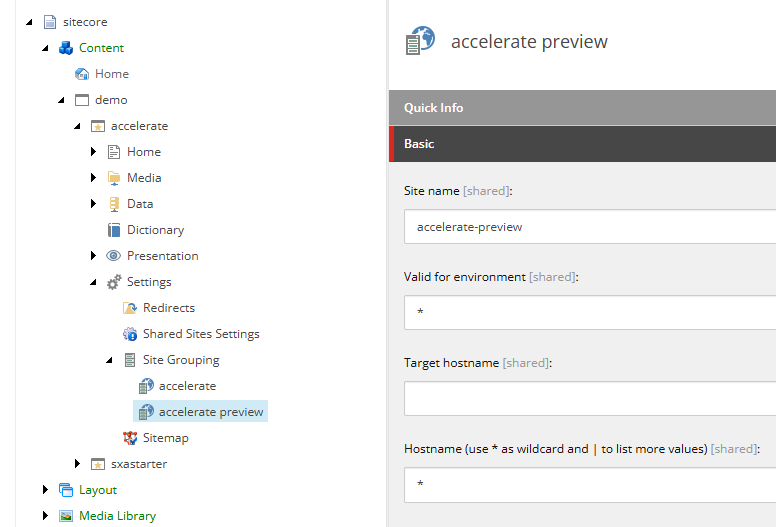
Experience Edge does not support multiple site definitions pointing to the same start item and doing so may result in conflicts in route resolution, ambiguities in GraphQL queries and inconsistent cache invalidation behaviour.
Public_URL
When setting up deployment protection to secure your site you may have issues with site assets loading due to Public_URL configuration. If you are using the metadata based editing mode then optimizations can be made to improve performance and remove the public url if you are not using Experience Editor. If you still need to use Experience Editor and need the publicUrl then follow instructions on how to enable with protected deployments.
Secure the preview environment
As this preview environment has access to pre-released content we will need to secure the environment.
This can be acheived in Vercel by setting up deployment protection and providing stakeholders with login credenatials or maybe taking advantage of shareable links. A similar setup can be acheived in Netlify by securing your site by a simple password or providing stakeholders with credentials.
Statically generated sites
For production sites revalidation times should be set to high values to avoid frequent revalidations and reduce load while working in conjunction with on-demain incremental static re-generation. However, for the preview site this can be set to a lower value to allow stakeholders to easily view content updates. You could use an environmental variable like below in the catch all route can help acheive this for the preview site.
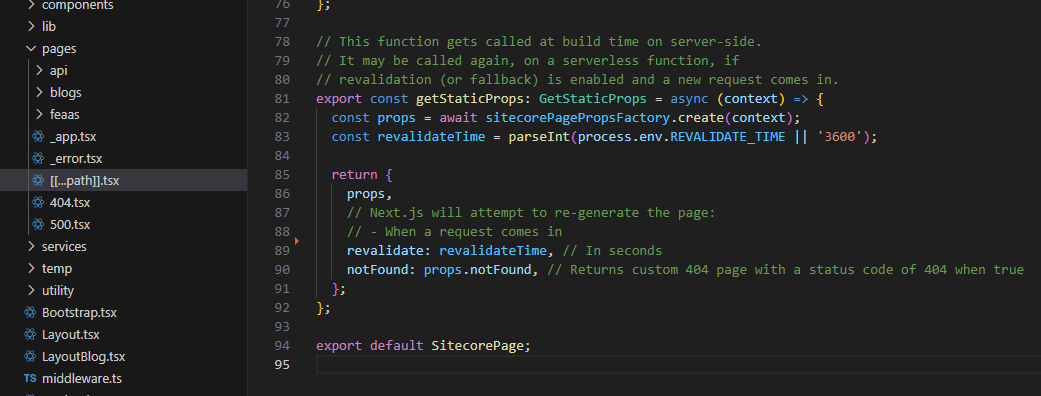
export const getStaticProps: GetStaticProps = async (context) => {
  const props = await sitecorePagePropsFactory.create(context);
  const revalidateTime = parseInt(process.env.REVALIDATE_TIME || '3600');

  return {
    props,
    // Next.js will attempt to re-generate the page:
    // - When a request comes in
    revalidate: revalidateTime, // In seconds
    notFound: props.notFound, // Returns custom 404 page with a status code of 404 when true
  };
};
Related Recipies
Related Documentation
- For recipe suggestions, questions or feedback, please use the form.
- For direct contribution, please create a pull request on the Github repository for review.