Google Analytics
Context
XM Cloud’s built-in Analyze give marketers and editors a lot of what they need out of the box. You can see what’s happening on your site in near real-time — page and site insights, form submissions, A/B/n test results, all updated frequently.
But the integrating with tools such as Google Analytics are still in place for views such as SEO management, pag campaigns and cross-channel funnels.
The provided code is intended as a guideline and must be tailored to suit your specific implementation requirements. Please ensure thorough end-to-end testing is conducted to validate its functionality and performance in your environment.
Execution
For most content teams their top priorities are visibility into how their pages perform, which content resonates, and where users are dropping off. The gap between authoring and analysis creates delays. A marketer may launch a campaign but won’t know until the next meeting whether page views or user engagement are moving in the right direction. Editors who simply want to know “is this feature page getting traction?” often have to rely on someone else to pull reports.
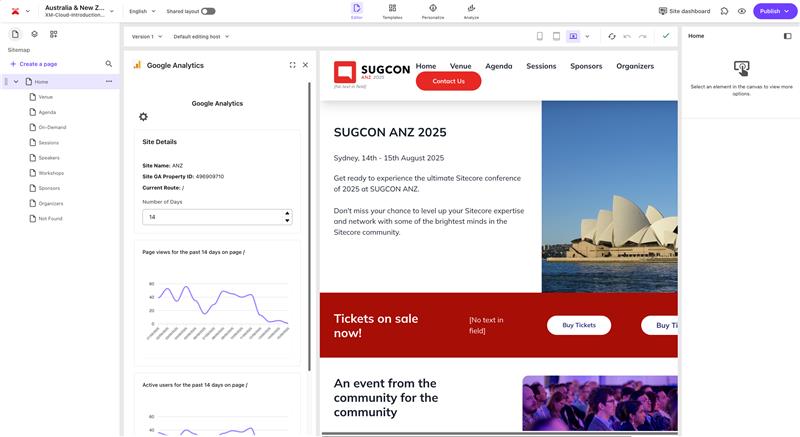
The Sitecore Marketplace Google Analytics app closes this gap. By surfacing GA4 metrics directly inside the XM Cloud authoring environment, it brings insights into the same place where content is created and managed. Editors see page views and active users without leaving Page Builder. Marketers can switch date ranges and spot trends without opening a separate tool. The data is governed, read-only, and scoped to their site context.
This module uses the Page builder context panel exention point where the app appears in a context panel to the left of the canvas.
You can find the code to setup, or extend on GitHub - Google Analytics Marketplace Module.
Insights
The Google Analytics Marketplace app isn’t about replacing XM Cloud’s built-in Analyze but about extending the analytics story. Editors get contextual metrics from Analyze, but GA brings long-term trend analysis into the same view. This dual view reduces context-switching, builds trust in the numbers, and speeds up decision-making.
From a delivery perspective, the real insight is that you can make GA available inside XM Cloud without compromising governance or security. By leaning on Sitecore’s Marketplace extension model, you get the right blend of governed flexibility: GA data is read-only, scoped to your site, and surfaced in a controlled UI—no rogue scripts sprinkled across components, no shadow integrations.
Production Checklist
- Service account should have Viewer access to the GA4 property only. Nothing more.
- Store
GA_CLIENT_EMAILandGA_PRIVATE_KEYin XM Cloud environment secrets (or your hosting provider’s encrypted config). Never commit keys to Git. - Map your app routes to the correct Marketplace extension points (Dashboard widget for KPIs, Fullscreen for deep dives).
- Ensure only the right Cloud Portal roles can see and manage the app. Don’t over-grant org-wide Owner just to fix visibility.
- GA4 APIs have limits. Add light server-side caching if traffic grows, so dashboards stay snappy.
- Host on a stable provider (Vercel is ideal for Next.js) and lock to tested versions.
Troubleshooting
- “No data” in charts: Confirm the service account has Viewer access to the correct GA4 property, and that the property actually has traffic for the selected date range.
- Auth errors: Check your private key formatting. It must include literal \n line breaks inside quotes. Misformatted keys are the #1 failure point.
- App loads but route not found: Double-check your Marketplace extension point config matches the Next.js route you deployed.
- Charts show but numbers look off: Compare against GA4 directly. Remember Analyze and GA4 sometimes measure differently (e.g., definitions of sessions, unique users). Align expectations with marketing.
- Editors can’t see the app: Verify Marketplace app installation at the org level, and that the XM Cloud project has it enabled. Also check user roles in Cloud Portal.
Related Documentation
- For recipe suggestions, questions or feedback, please use the form.
- For direct contribution, please create a pull request on the Github repository for review.