Flashing browser tabs for re-engagement
Context
Website visitors often want to find the best deal when making online purchases. Visitors will open multiple tabs, which can lead them to becoming distracted or overwhelmed. To entice the visitor back to your webpage, consider using a flashing browser tab. This is an easy way to invite re-engagement with a visitor.
The provided code is intended as a guideline and must be tailored to suit your specific implementation requirements. Please ensure thorough end-to-end testing is conducted to validate its functionality and performance in your environment.
Execution
Using a flashing browser tab is a lightweight but effective personalization tactic to re-engage visitors who have opened multiple tabs while comparison shopping. The business case is straightforward: distracted visitors often abandon carts or forget about active promotions, and a flashing tab provides a simple, low-cost way to recover their attention, reduce abandonment, and increase conversions. Because it requires minimal technical effort, it offers strong ROI relative to more complex personalization strategies.
The should focus on re-engaging visitors at critical points such as product pages, cart, or checkout. The flashing tab can carry value-driven or urgency-based messages; for example, reminding the user their cart is waiting, reinforcing a discount, or highlighting a limited-time deal. Personalization can be layered in with dynamic elements like product names or cart totals, with triggers tied to specific behaviors (switching tabs, periods of inactivity, or active promotions). This works best on desktop browsers, where multitabbing is common.
Implementaton
-
Create a web template named 'Abandoned Tab Engagement' so that the flashing browser tab can be reused.
-
Go to the JavaScript tab to add scripting that changes the document title after a certain interval when the browser tab is inactive. The script flips between two messages to display as the title ever 100ms.
insertHTMLBefore("body");
var pageTitle = document.title;
var attentionMessage = "[[Title Text | text |Choose first flashing text| {order: 1,max: 20}]]";
var attentionMessage1 = "[[Second Text | text |Choose second flashing text| {order: 1,max: 20}]]"
var blinkEvent = null;
var eventSent = false;

var isPageActive = !document.hidden;
if(!isPageActive){
    blink();
}else {
    document.title = pageTitle;
    clearInterval(blinkEvent);
}
window.addEventListener('visibilitychange', visibilityChangeFunction);
function visibilityChangeFunction(){
    var isPageActive = !document.hidden;
    if(!isPageActive){
        blink();
    }else {
        document.title = pageTitle;
        clearInterval(blinkEvent);
    }
}

function blink(){
    blinkEvent = setInterval(function() {
        if(document.title === attentionMessage1){
            document.title = attentionMessage;
        }else {
            document.title = attentionMessage1;
        }
    }, 100);
}
-
When ready with the Abandoned Tab Engagement web template, change the state from Draft to Published. You’re now able to use the web template on a page.
-
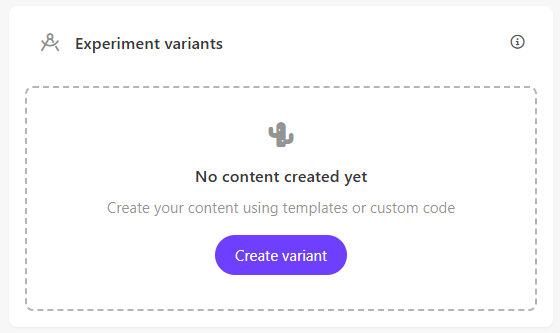
Time to use the web template as a variant in a Web Experiment. Create a web experiment and select the Abandoned Tab Engagement template when creating a variant.
-
When the variant editor opens, change the text for the alternating titles.
-
To ensure the experiment targets the page only when your visitors have left the page, select Specific Pages under the Page Targeting section of the page. Select Advanced Targeting when the pane opens.
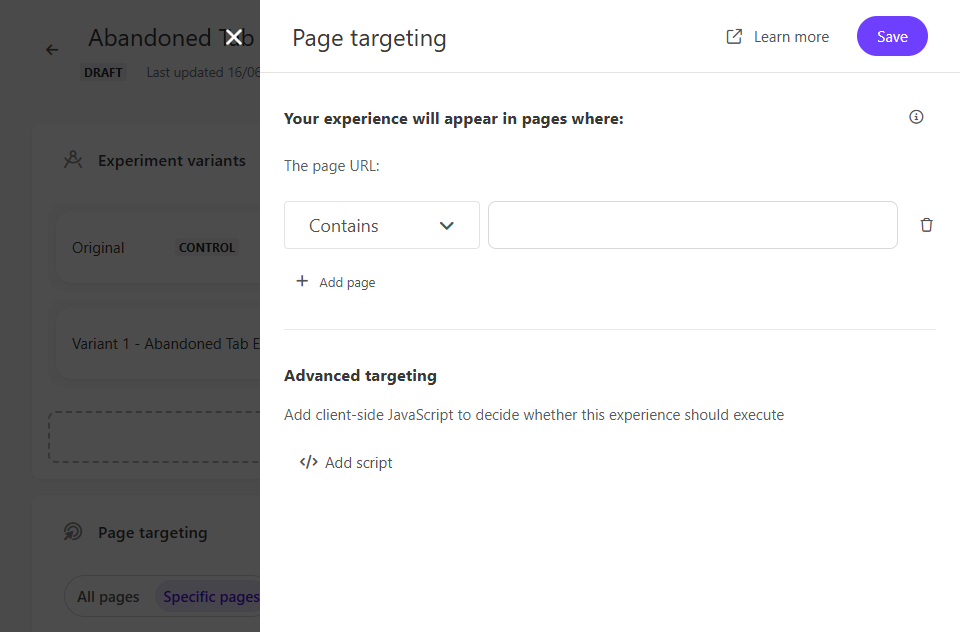
- Add the following script to target the page when the browser tab is inactive
window.addEventListener('visibilitychange', visibilityChangeFunction);
function visibilityChangeFunction(){
    if(document.hidden){
        window.removeEventListener('visibilitychange', visibilityChangeFunction);
        targetingPassed();
    }
}
- Finish setting up the experiment as needed. Be sure to add a goal to test the effect and performance of the flashing browser tab. Preview the test, and when ready, start the experiment.
Insights
Usually, when creating web experiments, flicker is a concern as the experiment will populate the screen after page load. Since this web experiment displays when the visitor is not on the page, take advantage of decision models or API calls that might affect the display of other web experiments. This might be helpful when generating the text for the browser tab if additional discounts or deals are available to the visitor.
An experiment needs goals to track effectiveness. Consider adding a Revenue Conversion goal to this experiment. This will show uplift in revenue from exposure to the flashing browser tab.
Key considerations are around execution and brand alignment.
- The flashing effect must remain subtle to avoid irritating users, with limits on frequency and duration.
- Testing across major browsers is necessary, as is tracking impact through return-to-tab rates, cart recovery, and conversion lift. Importantly, the approach must be consistent with the brand voice—luxury retailers might prefer a gentle reminder, while discount-driven brands can lean more heavily on urgency.
- Accessibility should not be overlooked; flashing content can be problematic for some users, so opt-outs or careful design are prudent.
Related Recipes
Related Documentation
- For recipe suggestions, questions or feedback, please use the form.
- For direct contribution, please create a pull request on the Github repository for review.